
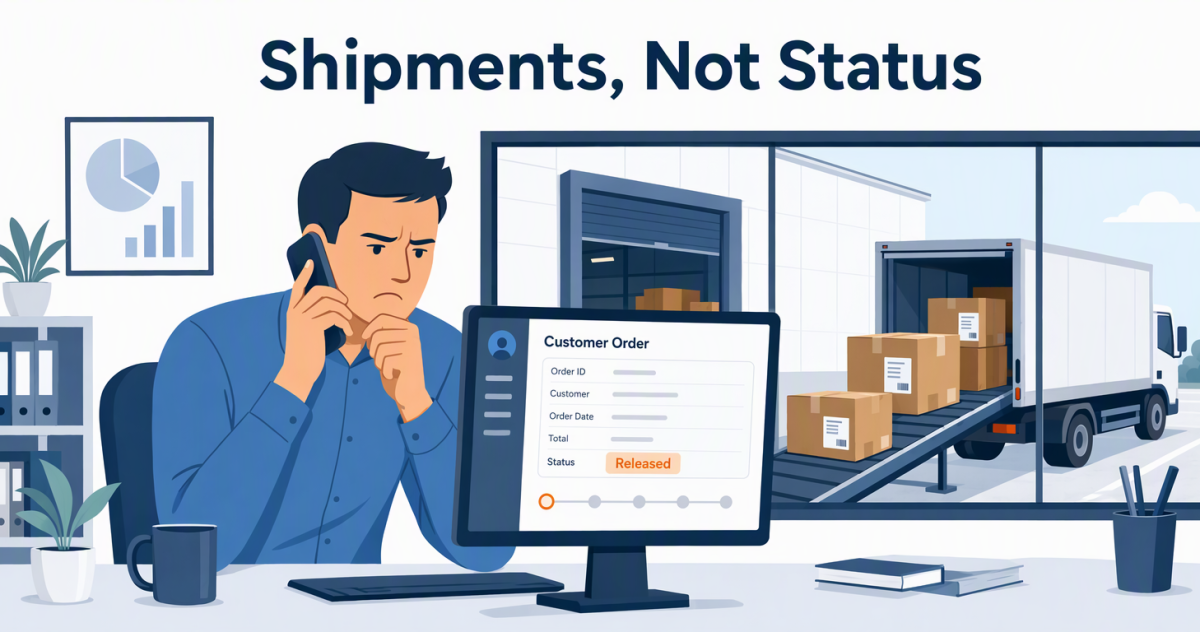
A customer’s buyer calls your account manager on the first of the month. “We got 80 filters. Where are the other 40?” The account manager opens the order in Salesforce. It says Activated. That is all it says.
That moment costs more than an awkward pause. The account manager promises a callback and chases the warehouse on chat. The customer concludes your team doesn’t know its own orders. At month end, the same blind spot does worse. Forecasts count orders that haven’t left, and a status that syncs a day late moves revenue into the wrong period.
The obvious fix is to sync the order status from the ERP. It doesn’t work. In Business Central, the order’s status field tells you whether the document can still be edited, not whether anything shipped. And the moment an order is completely shipped and invoiced, Business Central removes it from the list of sales orders. Sync the order, and Salesforce goes quiet exactly when the order is done. Aonflow connects Salesforce and Business Central with pre-built connectors and near real-time data sync, so order status in Salesforce comes from what actually shipped.
This is for the leader who just connected Salesforce and Business Central and now answers for what the sales team sees: the CIO, the IT head, or the operations executive who owns the project. The design holds whichever integration platform you use.
Before your team relies on order status in Salesforce, settle these five decisions:
- Document status vs. fulfillment status: keep the order’s own status for what it means, and add a separate fulfillment status that only shipments and invoices can change.
- Line-level quantities: show ordered, shipped and invoiced quantities on each line, because most orders ship in pieces.
- The disappearing order: when a fully posted order leaves Business Central’s order list, mark it complete in Salesforce, never as an error.
- Shipped, not delivered: show the ship date and the tracking number, and say delivered only when a carrier source does.
- Posting date, not sync time: stamp every update with the Business Central posting date, so month-end reports match the ledger.
What a Stale Order Status Costs You
Customers ask the same three questions about every order. Has it shipped? How much of it? When does the rest arrive? The answers live in Business Central, and the question lands in Salesforce.
So teams improvise. They paste ERP screenshots into chat. They hand sales an ERP login nobody uses twice. Or they run a nightly export that answers yesterday’s question tomorrow. Each workaround has a price:
- Time on every call. A two-minute answer becomes a two-hour callback.
- Credibility. A customer who knows more about the shipment than your account manager starts looking elsewhere.
- Forecast accuracy. When sales can’t see what shipped, the forecast counts orders still sitting in the warehouse.
What Does Order Status in Salesforce Actually Tell You?
On its own, it tells you whether the order is in effect, not where the goods are.
You can add your own values to the Salesforce order’s Status picklist, but only within two system-defined categories: Draft and Activated (Salesforce Help: Order Fields). Business Central’s status field describes the document too. A sales order is Open, Released, Pending Approval, or Pending Prepayment. Released means the order has moved to the next stage of processing and its item lines can no longer change. The warehouse may now include it in its work (Microsoft Learn: Status Field on Documents).
In other words, Released means the warehouse may start. It does not mean the warehouse has finished.
Document Status vs. Fulfillment Status
It is tempting to map one status field to the other: Released becomes Activated, and the project is done. That mapping is accurate and useless. A released order can sit untouched for a week, ship in three pieces, or ship completely on day one. The status field reads Released through all of it.
The Rule: the sales order is an instruction and the posted shipment is the evidence, so Salesforce reports fulfillment from shipments, never from the order’s status field.
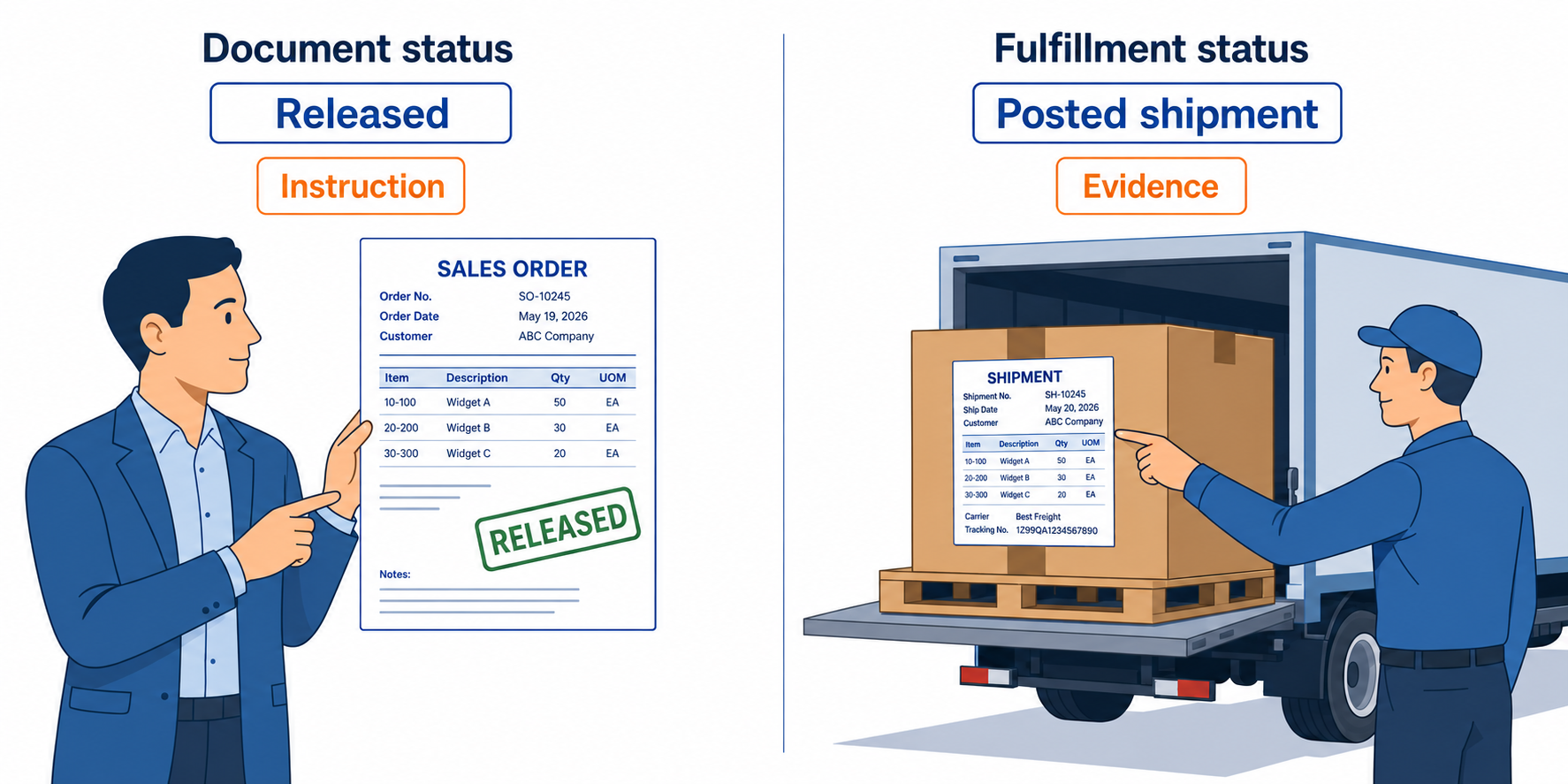
So keep the two ideas apart. The order’s own status stays what it is. Next to it, add a fulfillment status field to the Salesforce order. Only shipments and invoices change it, and reps can only read it. In Salesforce, page layouts and field-level security decide which fields users can see and edit (Salesforce Help: Order Fields).
Each flow then has one job. The order flow instructs. It carries a closed deal into Business Central, and our guide to turning a closed-won opportunity into a sales order covers that direction. The shipment flow proves the goods left. The invoice flow closes revenue.
Line-Level Quantities
Most teams design for the order that ships all at once. Business Central is built for the other kind. You can ship 40 units of a 100-unit order now and 60 later, and there is no limit on the number of shipments (Microsoft Learn: Process partial shipments). So status belongs to the lines first and the order second.
In plain terms, each Business Central order line knows four things (Microsoft Learn: salesOrderLine resource type). Map them to the Salesforce order products:
| What Business Central tracks on each line | What it means | Show in Salesforce as |
|---|---|---|
The quantity ordered (quantity) |
What the customer asked for | Ordered |
The expected ship date (shipmentDate) |
When the line is planned to ship | Expected ship date |
The quantity already shipped (shippedQuantity) |
What has left the warehouse | Shipped |
The quantity invoiced (invoicedQuantity) |
What finance has billed | Invoiced |
Then derive the fulfillment status with one rule, every time:
| When the line shows | Fulfillment status |
|---|---|
| Nothing shipped | Not shipped |
| Some shipped, not all | Partially shipped |
| All shipped, not all invoiced | Shipped, not invoiced |
| All shipped and all invoiced | Complete |
The order takes the status of its least advanced line, so one late line keeps the whole order at Partially shipped. That is exactly what the customer will say on the phone.
Quantities can also go backward. If someone posts the wrong quantity as shipped, Business Central lets them undo the shipment before it is invoiced (Microsoft Learn: Undo a posting). Your flow has to accept a shipped count that falls, or Salesforce keeps promising goods that never left.
The Disappearing Order
Here is the failure almost nobody plans for. When a sales order is fully posted, Business Central removes it from the list of sales orders (Microsoft Learn: Sell products with a customer sales order). The posted shipments and posted invoices remain on their own pages (Microsoft Learn: Posting sales documents), but the order itself is gone.
A sync that watches open orders therefore loses sight of each order at the moment it completes. Then one of two things happens. Either Salesforce freezes at the last status it saw, so a finished order reads Partially shipped forever. Or the flow logs “record not found” on every run, someone mutes the alert, and real failures hide behind the noise.
The natural instinct is to treat a missing record as a failure. Here, it is the success signal. So the flow reads posted shipments and invoices as they appear. When an order drops off the list, the flow marks it Complete once the posted quantities add up.
Shipped, Not Delivered
A posted shipment proves the goods left your warehouse. It does not prove they arrived. So the honest last word in Salesforce is Shipped, with the date and the tracking number, unless a carrier source says more.
Business Central keeps the shipping agent’s package tracking number on the posted sales shipment. Staff can update it after posting (Microsoft Learn: Edit posted documents). That matters, because the tracking number often arrives the morning after the goods leave. A flow that reads each shipment once will miss it, so re-read recent shipments for a day or two.
Here is advice that has nothing to do with software: ask your warehouse lead when tracking numbers actually get entered. The answer sets your re-read window.
Posting Date, Not Sync Time
At month end, order status stops being a service question and becomes an accounting one. A shipment and its invoice can post on different days, and each carries its own posting date. Finance decides which date drives the period, and the flow follows that rule.
So Salesforce shows the Business Central posting date, never the time the update arrived:
| Situation | Which period it lands in | What Salesforce shows |
|---|---|---|
| Shipped September 29, invoiced September 30 | September | Shipped Sept. 29, invoiced Sept. 30 |
| Shipped September 30, invoiced October 1 | Invoice in October | Shipped, not invoiced at September close |
| Flow down September 30 to October 2 | Each document’s own posting date | Updates replayed in posting-date order |
The last row is the catch-up rule. After an outage over month end, the flow replays shipments and invoices in posting-date order. Each one keeps its Business Central date. The flow never uses the arrival time, because that moves September business into October.
How Aonflow Keeps Order and Fulfillment Status Current in Salesforce
With the decisions made, the build is configuration, not a development project. Each capability ties back to a decision above.
Aonflow lets teams:
- Connect both systems with pre-built connectors for Salesforce and Business Central, so the fulfillment status comes from posted shipments, not the order’s status field.
- Use AI-assisted mapping to line up the four line-level quantities with the Salesforce order products they feed, which reduces integration time by more than half.
- Build the status rule into one workflow, including the step that marks a disappearing order Complete once its posted documents add up.
- Keep Salesforce current with near real-time data sync, so a shipment posted at 3 pm reaches the account manager before the customer calls.
- Watch every run with dashboards, logs and alerts, so a failed run surfaces as an alert, not as a surprise at month end.
- Recover breaking flows with self-healing, which shortens the outages the catch-up rule exists to repair.
Aonflow connects and orchestrates the systems you already run. Business Central still owns what shipped and what was billed, and Salesforce still owns the relationship.
A Worked Example: One Order, Two Shipments
A customer orders 120 filter cartridges at $300 each, $36,000 in total. The order runs like this:
- 120 units ordered. Finance releases the order on September 22.
- 80 units shipped on September 29. The tracking number goes in the next morning.
- $24,000 invoiced on September 30, for the 80 units shipped.
- 40 units shipped on October 6, and invoiced the same day for $12,000.
- Order removed. Business Central drops the fully posted order from its list.
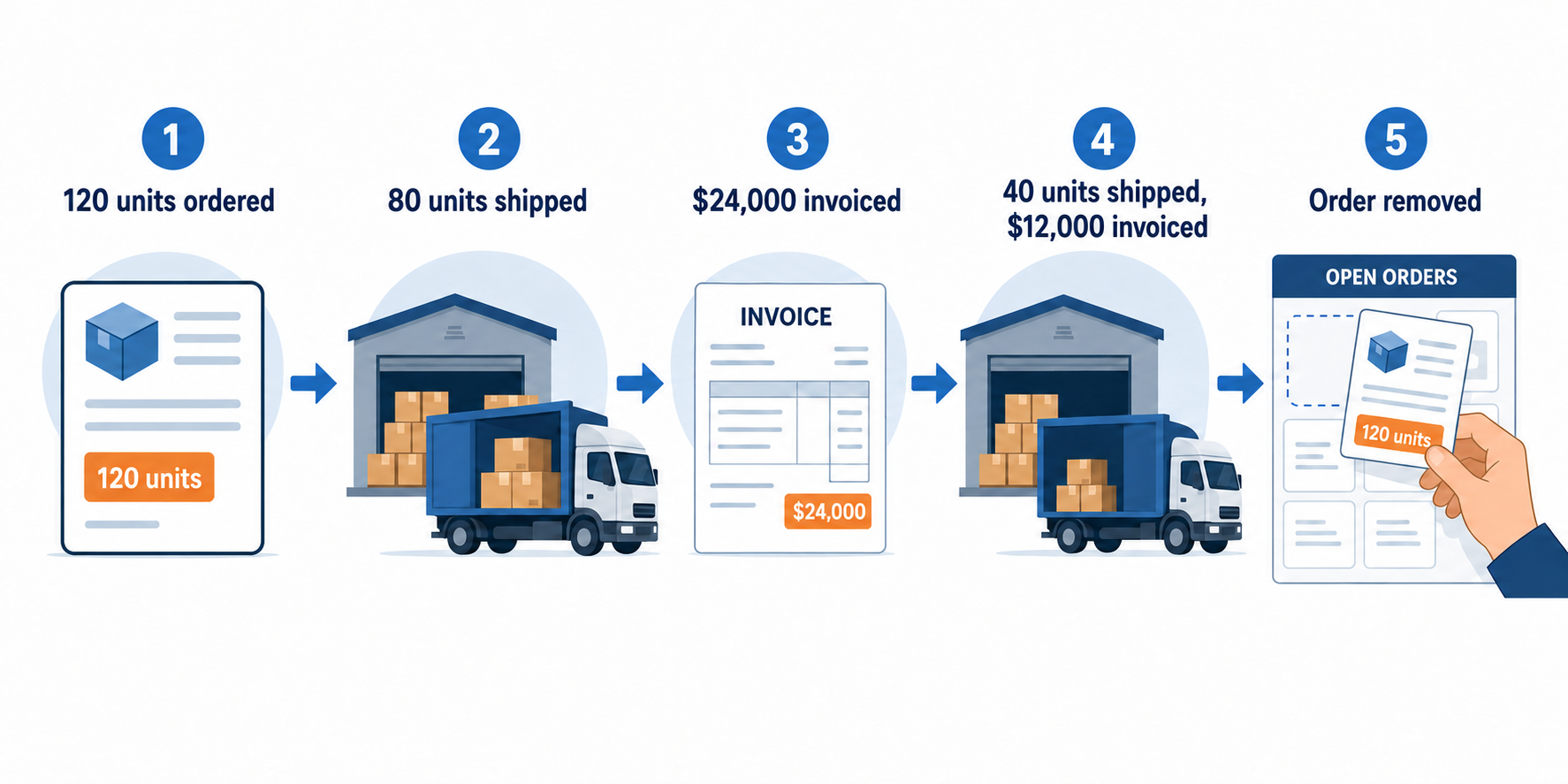
Before the flow, Salesforce said Activated through all five steps. The October 1 call went badly, and the old nightly sync logged “not found” for the order every night after October 6.
After the flow, the account manager sees 120 ordered, 80 shipped and 80 invoiced. The tracking number and the expected ship date for the rest sit beside them. On October 6, the order reads Complete. And the September report shows $24,000 invoiced, which is what the ledger says, not the full $36,000 order total.
Who Owns This When It Breaks
Who owns the flow? Sales operations, with a named Business Central systems owner. Sales operations owns what the Salesforce fields show. The Business Central owner decides what counts as shipped and invoiced.
Who gets alerted when it fails? The flow owner, on the first failed run.
Where do failed records wait for review? Shipments that match no Salesforce order wait on an exception list, and the flow owner reviews it daily. Aonflow’s logs and alerts show the flow owner when a run fails.
Then wire these escalation triggers:
| Trigger | Who acts |
|---|---|
| A posted shipment matches no Salesforce order | Sales operations |
| An order passes its expected ship date with nothing shipped | Account owner, with the warehouse lead |
| A shipment is undone after Salesforce showed it as shipped | Account owner, who tells the customer |
| No status update has reached Salesforce in 24 hours on a business day | Flow owner |
Security stays within the confirmed posture: data moves over HTTPS, API access is available through read-only tokens, and role-based access control decides who sees the figures.
FAQ
Can account managers update fulfillment status when a customer says the goods arrived?
They shouldn’t edit the field. Log the customer’s confirmation as an activity instead, and keep the fulfillment fields read-only, so only shipments and invoices change them.
What about orders created directly in Business Central?
Decide up front whether they belong in Salesforce. If they do, match them to the account by customer number. If they don’t, filter them out so the exception list stays useful.
Does building this need a developer?
You can build the flow without code. You do need someone who knows how your warehouse posts shipments, including how it undoes them.
We use a 3PL. Does this still work?
Yes, as long as the 3PL’s shipments post into Business Central first. The status flow then reads them like any other shipment.
Conclusion
Order status in Salesforce comes down to five decisions: document status vs. fulfillment status, line-level quantities, the disappearing order, shipped, not delivered, and posting date, not sync time. They are easier to make before the first sync than after it. Then decide who owns this when it breaks, and your account manager answers the October 1 call in one sentence.
Before you build anything, pull last month’s partially shipped orders from Business Central and check what Salesforce says about each one today.
Get Started with Aonflow iPaaS – Free Trial Available!
Build and deploy your integrations at zero cost. No credit card required!