
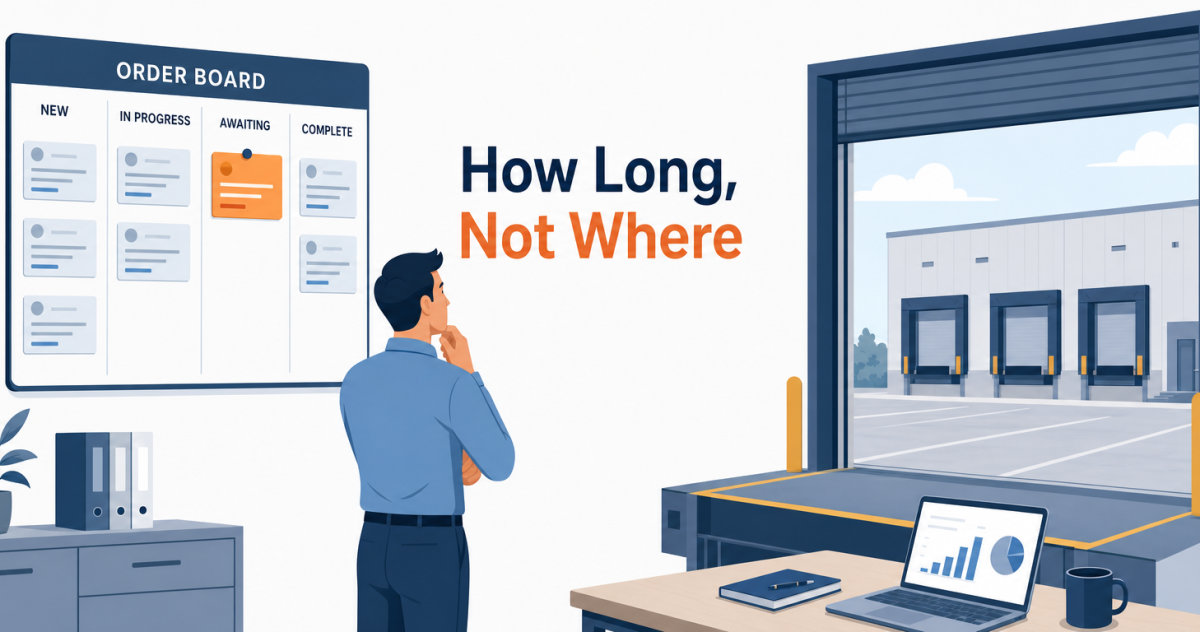
On the last day of the quarter, an account manager tells a customer their order “shipped last week.” That evening, finance closes the books. The goods left on time. The invoice didn’t, and $10,000 of September shipments lands in October.
Nobody made a mistake. The order sat in a NetSuite status called Pending Billing for a week, and a status that stops changing makes no noise. That is the real cost of disconnected order tracking. The forecast counts revenue nobody has billed. Account managers make promises against the wrong stage. And quarter-end quietly moves business into the next period.
Aonflow connects NetSuite and Salesforce with pre-built connectors and near real-time data sync. It can also post the sales order status updates people must act on into Slack or Microsoft Teams. Copying the status across is the easy part. A status tells you where an order is. How long it has sat there tells you whether anyone needs to act.
This is for the leader who just connected NetSuite and Salesforce and now answers for what the account team sees. The approach holds whichever integration platform you use.
Before you publish sales order status updates to Salesforce, settle these six decisions:
- Two tracks, one field: read the NetSuite status as fulfillment progress and billing progress, and show each separately.
- Three stages, three owners: name who acts at approval, fulfillment and billing, because each stage stalls differently.
- Milestones, not every change: send every milestone to Salesforce, and only actions to Slack or Teams.
- Stall alerts: set how long an order may sit in each status before its owner hears about it.
- Backward moves and closed orders: follow a status that moves backward, and treat a closed order with unbilled shipments as an alert.
- Billing date, not sync time: stamp every update with the date NetSuite recorded, so quarter-end matches the ledger.
What Does a NetSuite Sales Order Status Actually Track?
It tracks two things at once: how much has shipped and how much has been billed.
With NetSuite’s Advanced Shipping feature on, shipping and accounting work separately. You can fulfill all or part of an order apart from invoicing it, and the status shows where the order sits in both. NetSuite sets these statuses itself, and users can’t change them by hand (Oracle NetSuite: Viewing the Status of Sales Orders). Without Advanced Shipping, the order simply waits for an invoice or cash sale, so shipping and billing read as one step.
So start with one question for your NetSuite administrator: is Advanced Shipping on? The answer decides whether you track one progress line or two.
Two Tracks, One Field
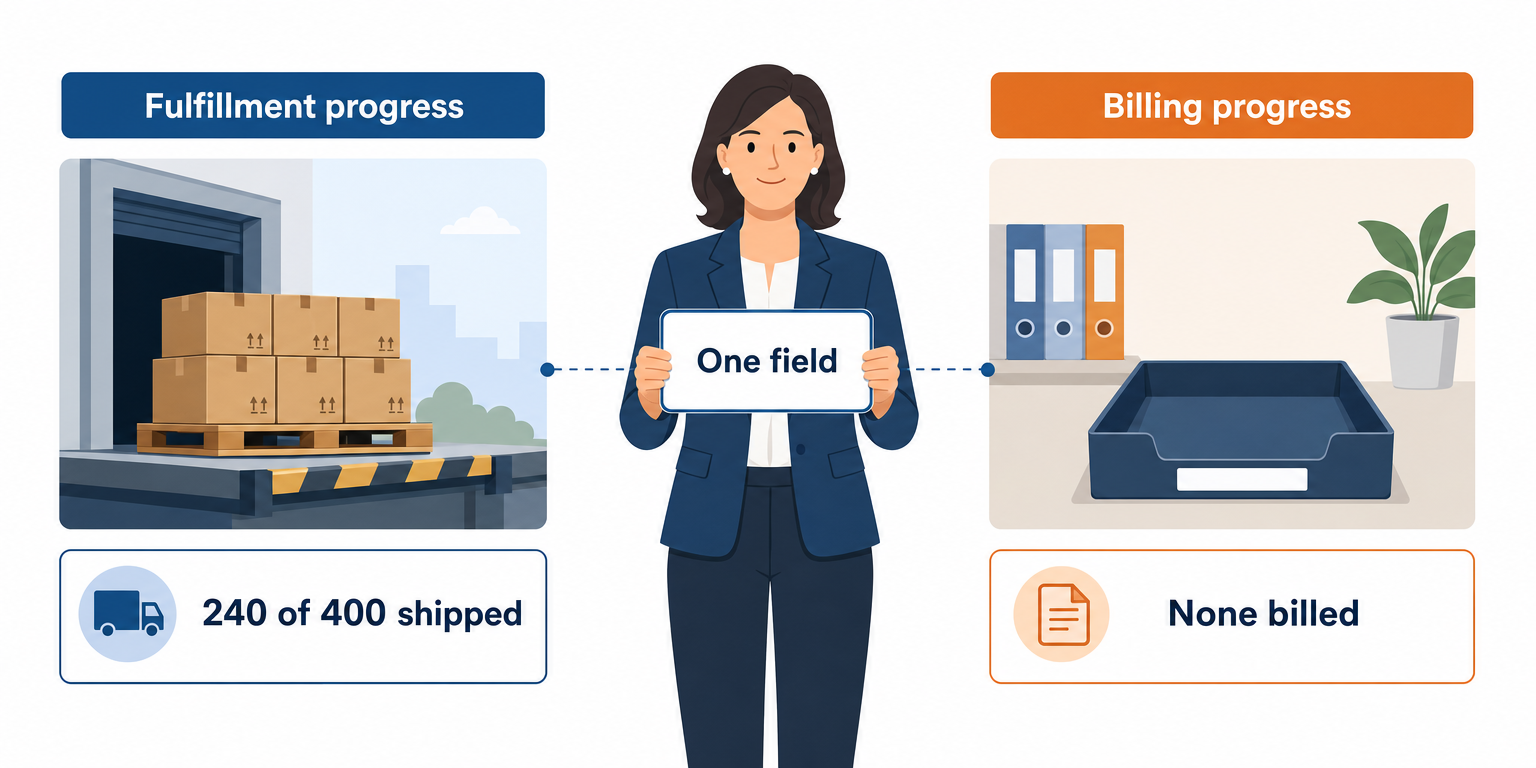
It is tempting to copy the NetSuite status into a Salesforce picklist and call the job done. However, one field is carrying two answers, and some values only answer one of them.
Here is how each status reads on the two tracks, with Advanced Shipping on:
| NetSuite status | Fulfillment progress | Billing progress | Who acts next |
|---|---|---|---|
| Pending Approval | Not started | Not started | Approver |
| Pending Fulfillment | Not shipped | Not billed | Warehouse |
| Partially Fulfilled | Partly shipped | Not stated | Check the lines |
| Pending Billing/Partially Fulfilled | Partly shipped | Billing pending | Warehouse and AR |
| Pending Billing | Fully shipped | Not billed, or partly billed | AR |
| Billed | Fully shipped | Billed | Nobody, until payment is due |
| Closed | No further shipping | No further billing | Account owner |
Two rows need care. Partially Fulfilled means partly shipped regardless of billing status. Pending Billing includes orders that are already partly billed. For both, read the order lines. Each line shows the quantity fulfilled and the quantity invoiced, and those two numbers settle what the status leaves open.
So Salesforce gets two read-only fields next to the original status. A rep then sees “240 of 400 shipped, none billed” instead of a status name. After billing comes payment, which our guide to payment status in Salesforce covers.
Three Stages, Three Owners
Each stage waits on something different. An approval waits on a person. A fulfillment waits on stock, picking or a carrier. A bill waits on the billing run or a pricing question.
Give each flow a plain job:
- The approval update releases. It tells the account owner the order is real and the warehouse may start.
- The fulfillment update proves. It shows what left the building and what is still to come.
- The billing update closes revenue. It confirms the order has become an invoice.
Then name a person for each stage, not a department. “Accounts receivable” is not an owner. The AR lead who runs the billing pass is. (For the outbound half of the journey, see turning won deals into ERP sales orders.)
Milestones, Not Every Change
The natural instinct is to post every status change to one Slack channel so everyone stays informed. Within two weeks, that channel carries dozens of messages a day and nobody reads it. The update that mattered scrolls past with the rest.
So split updates by destination:
| Update | Salesforce record | Slack or Teams |
|---|---|---|
| Order approved | Yes | No |
| Partial or full shipment | Yes | No |
| Order billed | Yes | No |
| Order closed with quantity unshipped | Yes | Account owner |
| Order canceled | Yes | Account owner |
| Order past its stall limit | Yes | That stage’s owner |
The Salesforce record is the history, so it gets every milestone. Slack and Teams are for action, so they get only what someone must act on. Slack’s API posts a message to a specific public or private channel (Slack Developer Docs: chat.postMessage). As a result, each owner can have a channel of their own.
Stall Alerts
Here is why a status sync alone misses the order in our opening story. A sync listens for change, and a stalled order doesn’t change. It sits in Pending Billing for a week, and a flow that waits for the next update waits with it.
The Rule: a status tells you where an order is, and how long it has sat there tells you whether anyone needs to act.
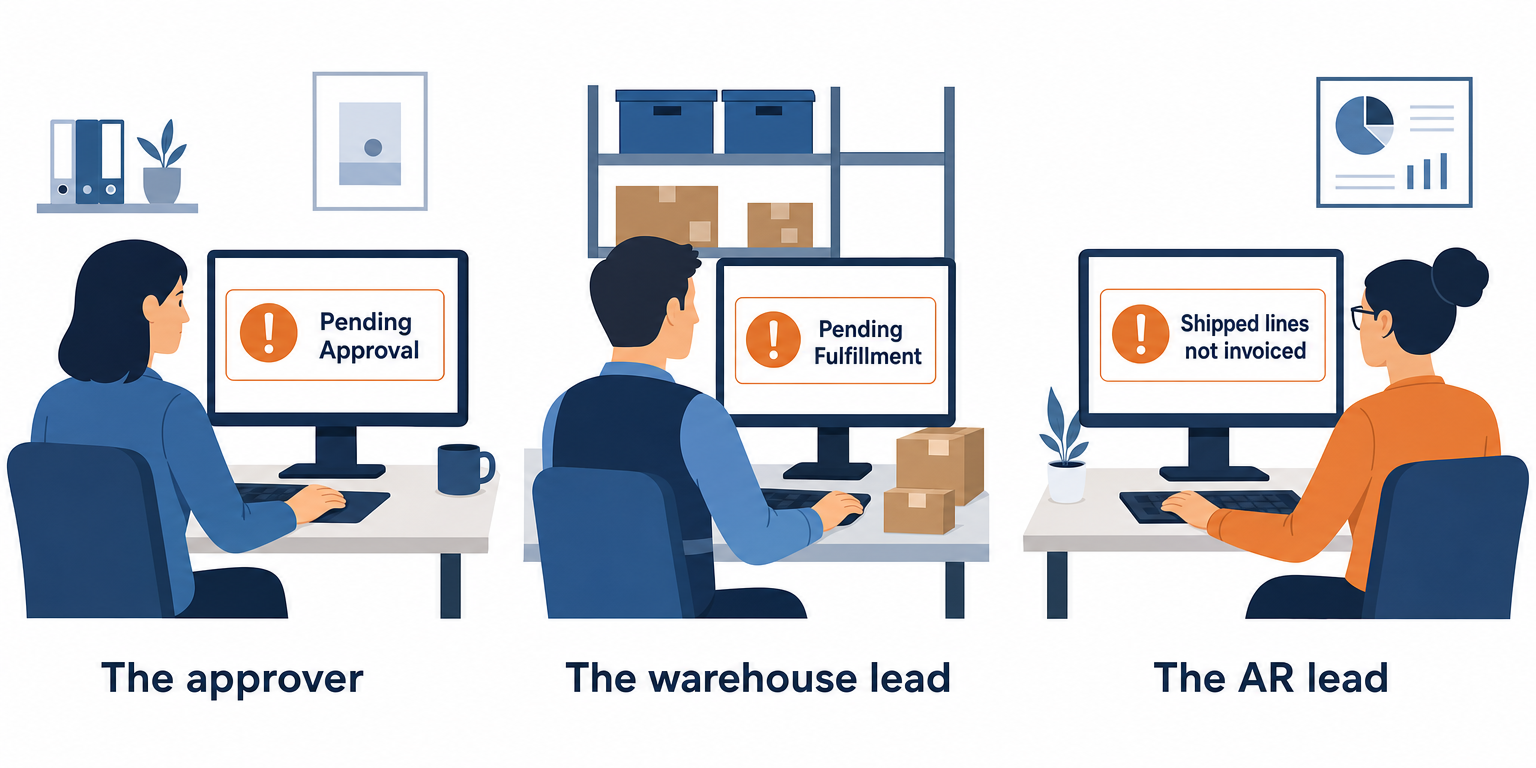
So record the date each order entered its current status. Then check that age on a schedule, not only when something changes, and give each stage a limit and an owner:
| Status | Example limit | Who hears about it |
|---|---|---|
| Pending Approval | 1 business day | The approver |
| Pending Fulfillment | Past the promised ship date | The warehouse lead |
| Shipped lines not invoiced | 1 business day | The AR lead |
These limits are examples. Set yours with the people who own each stage, and write them down.
Here is advice that has nothing to do with software: ask your AR lead how often billing actually runs before you pick a number. If the honest answer is weekly, a one-day limit will fire every day until the process changes. Have that conversation before go-live.
Backward Moves and Closed Orders
Most designs assume status only moves forward. NetSuite’s doesn’t. Reopen a closed line, and the order goes back to Pending Fulfillment or Partially Fulfilled (Oracle NetSuite: Reopening a Closed Sales Order). Your flow has to follow that move and restart the stall clock.
Closed is the other trap. It reads like finished, but it means the order won’t be fulfilled or billed any further. Oracle advises invoicing all fulfilled items first, because closing removes the order from the billing queue (Oracle NetSuite: Closing a Sales Order). An order closed with shipped but unbilled lines is goods you delivered and may never bill.
So treat the two closed cases differently:
- Closed, every shipped line billed: mark it finished, and tell the account owner what didn’t ship.
- Closed, shipped lines not invoiced: alert the finance controller the same day.
Canceled is simpler. It is a terminal status, so the flow marks it once and stops watching.
Billing Date, Not Sync Time
At quarter-end, order tracking becomes an accounting question. When AR bills from NetSuite’s Invoice Sales Orders page, the invoice date defaults to that day. The biller picks the posting period, and NetSuite won’t post to a closed period (Oracle NetSuite: Invoicing Sales Orders). So goods shipped on September 28 and billed on October 1 carry an October invoice date, and once September is closed, that invoice can’t post there.
Finance decides what that means for revenue. The flow’s job is to show the gap before the cutoff, and to report NetSuite’s dates honestly after it.
| Situation | What Salesforce shows | Why |
|---|---|---|
| Shipped and billed in September | September dates on both tracks | Matches the ledger |
| Shipped September 28, billed October 1 | Shipped in September, billed in October | The gap is the information |
| Flow down September 30 to October 2 | Updates replayed in NetSuite date order | Each keeps its own date |
The last row is the catch-up rule. After an outage over month end, the flow replays fulfillments and invoices in NetSuite date order. Each keeps NetSuite’s date, never the arrival time. The flow also recomputes every stall clock from those dates, so an order that stalled during the outage still alerts its owner.
How Aonflow Delivers Sales Order Status Updates Across NetSuite, Salesforce, and Slack
With the decisions made, the build is configuration, not a development project. Each capability ties back to a decision above.
Aonflow lets teams:
- Connect NetSuite, Salesforce, and Slack or Microsoft Teams with pre-built connectors, so status and line quantities move without Monday exports.
- Use AI-assisted mapping to line up the status and line quantities with the two progress fields, which reduces integration time by more than half.
- Build the stall check into the workflow, so an order sitting in Pending Billing reaches the AR lead even though nothing changed.
- Keep Salesforce current with near real-time data sync, so a fulfillment posted at 2 pm reaches the account owner before the next call.
- Watch every run with dashboards, logs and alerts, and recover breaking flows with self-healing, which shortens the outages the catch-up rule repairs.
Aonflow connects and orchestrates the systems you already run. NetSuite still owns what shipped and what was billed, and Salesforce still owns the relationship.
A Worked Example: One Order Stuck in Pending Billing
A customer orders 400 cases of nitrile gloves at $25 a case, $10,000 in total. AR at this company bills once a month, on the first business day.
- Approved September 22. The order moves to Pending Fulfillment.
- 240 cases fulfilled September 24. Status: Pending Billing/Partially Fulfilled. $6,000 shipped, nothing billed.
- 160 cases fulfilled September 28. Status: Pending Billing. $10,000 shipped, nothing billed.
- Billed October 1 in the monthly run, with an October invoice date.
Before the flow, Salesforce showed the deal as Closed Won and nothing after it. The quarter closed on September 30 with $10,000 of shipped goods unbilled.
After the flow, the account manager saw 240 of 400 shipped on September 24 and all 400 on September 28. On September 25, a stall alert reached the AR lead’s channel: $6,000 shipped, not billed. Rather than wait for the monthly batch, the AR lead invoices it that day as an exception. On September 29, a second alert fired for $4,000, and AR invoiced that too, the same way. Both invoices carry September dates, and the quarter matches what left the warehouse.
Who Owns This When It Breaks
Who owns the flow? Revenue operations, with a named NetSuite administrator. Revenue operations owns what Salesforce shows and the stall limits. The NetSuite administrator owns what each status means.
Who gets alerted when it fails? The flow owner, on the first failed run. Stall alerts go to each stage’s owner instead, because a stalled order is a business problem, not a flow failure.
Where do failed records wait for review? NetSuite orders that match no Salesforce record wait on an exception list, and the flow owner reviews it daily. To keep that list short, store the Salesforce record ID on the NetSuite order when it is created, and match on it.
Then wire these escalation triggers:
| Trigger | Who acts |
|---|---|
| Shipped lines not invoiced after 1 business day | AR lead |
| An order closes with shipped lines not invoiced | Finance controller |
| An order passes its promised ship date in Pending Fulfillment | Warehouse lead, with the account owner |
| No status update reaches Salesforce in 24 hours on a business day | Flow owner |
Security stays within the confirmed posture. Data moves over HTTPS, API access is available through read-only tokens, and role-based access control decides who sees billing figures.
FAQ
Should stall alerts go to Slack or Microsoft Teams?
Wherever the stage owner already works. Aonflow has pre-built connectors for both. Use one channel per owner, not one channel for everything.
Can the account team edit the progress fields in Salesforce?
No. NetSuite sets its own statuses, so the Salesforce copies should be read-only too. Salesforce field-level security controls whether users can view or edit each field (Salesforce Help: Field Permissions).
What if we invoice before we ship?
NetSuite has an accounting preference that allows invoicing before an order is completely fulfilled (Oracle NetSuite: Invoicing Sales Orders). If you use it, billing can run ahead of fulfillment, so add the reverse alert: billed, not shipped.
Does this need a developer?
You can build the flows without code. You do need the people who know how your warehouse ships and how AR bills, because they set the stall limits.
Conclusion
Sales order status updates come down to six decisions: two tracks, one field; three stages, three owners; milestones, not every change; stall alerts; backward moves and closed orders; and billing date, not sync time. Settle them before the first sync. Then the order that sat in Pending Billing for a week gets billed the day after it ships.
Before you build anything, pull last quarter’s orders that shipped in the final week, and check which ones billed in the next period.
Get Started with Aonflow iPaaS – Free Trial Available!
Build and deploy your integrations at zero cost. No credit card required!