

A rep closes a deal for 150 shelving units on a Tuesday. Before she promises delivery, she checks the product in Salesforce. It says 260 in stock, so she promises all 150 for next week. Two days later the warehouse ships 70. The other 190 units on the shelf already belonged to other customers’ orders.
That gap costs more than one awkward call. The customer has planned around a date your company can’t keep, and sales offers a discount to save the account. And the next time the rep sees a stock figure in Salesforce, she ignores it and messages the warehouse, which is exactly the work the integration was meant to remove.
The fix starts with one idea: the number on the shelf is not the number you can sell. Aonflow connects Salesforce and Business Central with pre-built connectors and near real-time data sync, so the product and inventory data in Salesforce comes from the item master and shows what is free to sell.
This is for the leader who just connected Salesforce and Business Central and now answers for what sales quotes from: the CIO, the IT head, or the operations executive who owns the project. The design holds whichever integration platform you use.
Before reps quote from product and inventory data in Salesforce, settle these five decisions:
- Item master as the catalog: Business Central items create and update Salesforce products, and nobody adds products by hand.
- Which items sell: only items that are not Sales Blocked become active products, and only inventory items carry a stock figure.
- Retire, don’t delete: when an item stops selling, deactivate the product and its price book entries together.
- Available, not on hand: show what is free to sell and when more arrives, never the shelf count.
- Price start date, not sync date: the list price changes in Salesforce on the day the Business Central price takes effect.
What a Wrong Stock Figure Costs You
Reps make promises from whatever Salesforce shows them. If it shows nothing, they ask operations and wait. If it shows the wrong thing, they promise with confidence, and that is worse.
Most teams fix the first problem with a nightly export of the item list. It feels like progress. However, the figure is usually the wrong one, it is a day old, and nothing on the screen says so. The cost lands in three places:
- Broken delivery dates. Customers plan around what your rep told them.
- Discounts given to save accounts. The margin pays for the gap.
- Lost trust in the CRM. Once reps stop believing a field, they stop reading it.
What Should Inventory Data in Salesforce Actually Show?
Three things: what is free to sell now, when more arrives, and when the figure was read. The rest of this post serves those three, plus a catalog clean enough that a rep picks the right product. Our overview of Business Central data in Salesforce covers the customer side: balances, credit and orders. This post covers the product side.
Item Master as the Catalog
It is tempting to let reps add the products they need in Salesforce. A new item arrives, a rep needs it on a deal today, so someone creates it. Within a year you have two catalogs that almost match. A product that exists only in Salesforce can’t become an order line later, and our guide to turning a closed-won opportunity into a sales order shows that rejection from the other side.
So set a direction instead. Business Central publishes the catalog, and Salesforce consumes it. In plain terms, each Business Central item carries a number, a name, a unit of measure, a category and a unit price (Microsoft Learn: item resource type). Salesforce products have a field for each (Salesforce Help: Product and Price Book Fields):
| Business Central item | Salesforce product | The decision |
|---|---|---|
Item number (number) |
Product Code | The key both systems match on |
Item name (displayName) |
Product Name | Business Central’s wording wins |
Base unit of measure (baseUnitOfMeasureCode) |
Quantity Unit Of Measure | Reps quote in the unit the order uses |
Item category (itemCategoryCode) |
Product Family | Reps filter by it |
Unit price (unitPrice) |
List price in the standard price book | A list price, never a customer price |
Then let only the integration create products. Nobody adds one by hand.
Which Items Sell
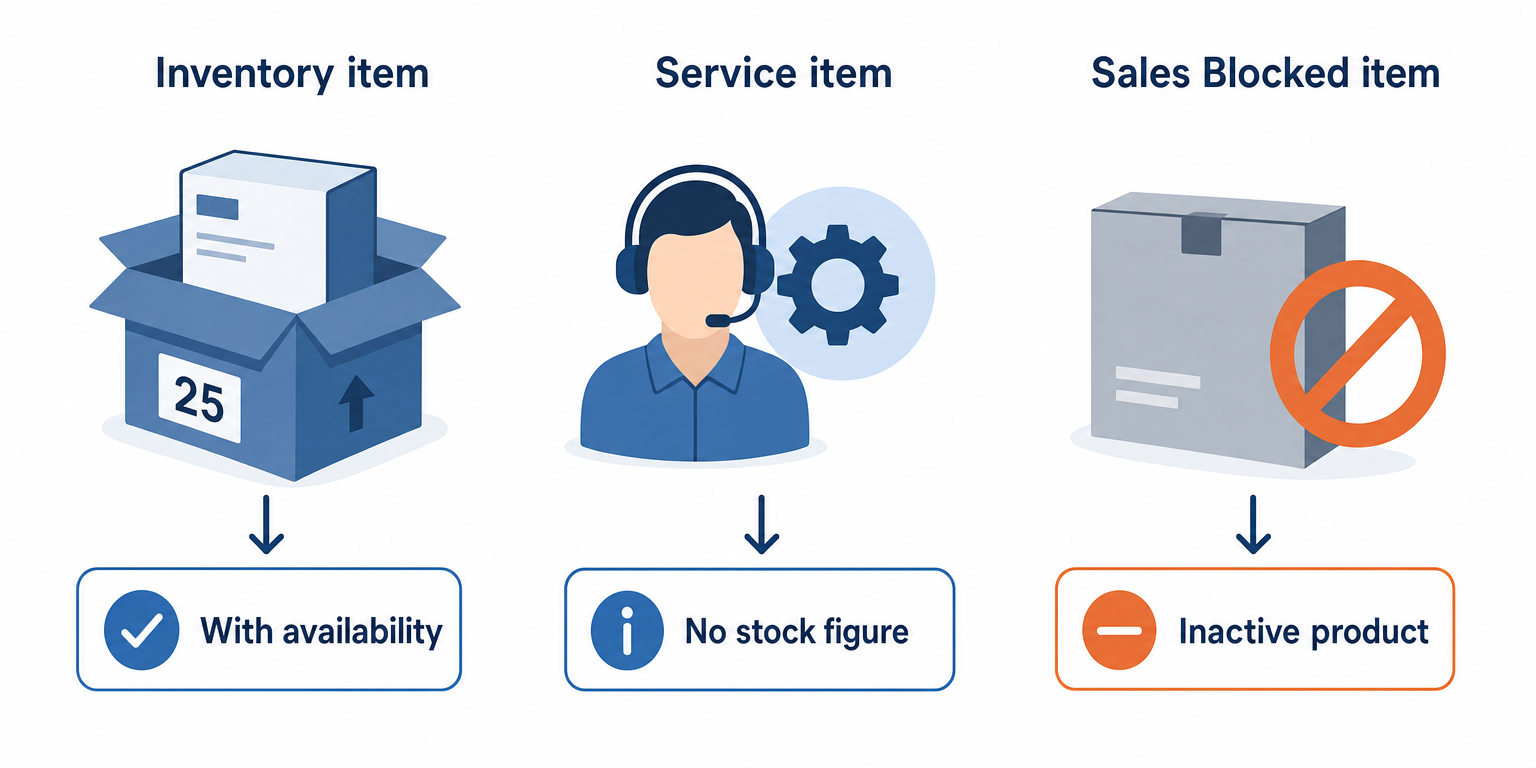
Business Central’s item list holds things you sell and things you don’t. It also holds three kinds of item, and only one of them has stock to report.
First, an item turned on as Sales Blocked can’t be chosen on a sales document (Microsoft Learn: Block items). It should never be an active product. Second, inventory items track quantities, while service and non-inventory items don’t (Microsoft Learn: Understand item types). A consulting hour that shows “0 in stock” invites a question nobody needs to answer.
| The item in Business Central | What Salesforce shows |
|---|---|
| An inventory item | An active product with availability |
| A service or non-inventory item | An active product with no stock figure |
| A Sales Blocked item | An inactive product with inactive prices |
Retire, Don’t Delete
When an item is discontinued, the natural move is to uncheck Active on the Salesforce product. That doesn’t stop anyone. Salesforce lets a rep add an inactive product to an opportunity, as long as its price book entry is still active (Salesforce Help: Adding Products to Opportunities).
So retiring is two steps, every time. The flow deactivates the product, then every price book entry for it. And it never deletes. Old opportunities still point at that product, and a deleted record leaves holes in the sales history your QBRs depend on.
Available, Not On Hand
It is tempting to sync the inventory figure and call the job done. Business Central’s standard item record even offers one: the number of units in inventory. That is on hand. It counts every unit on the shelf, including units already promised to customers whose orders haven’t shipped.
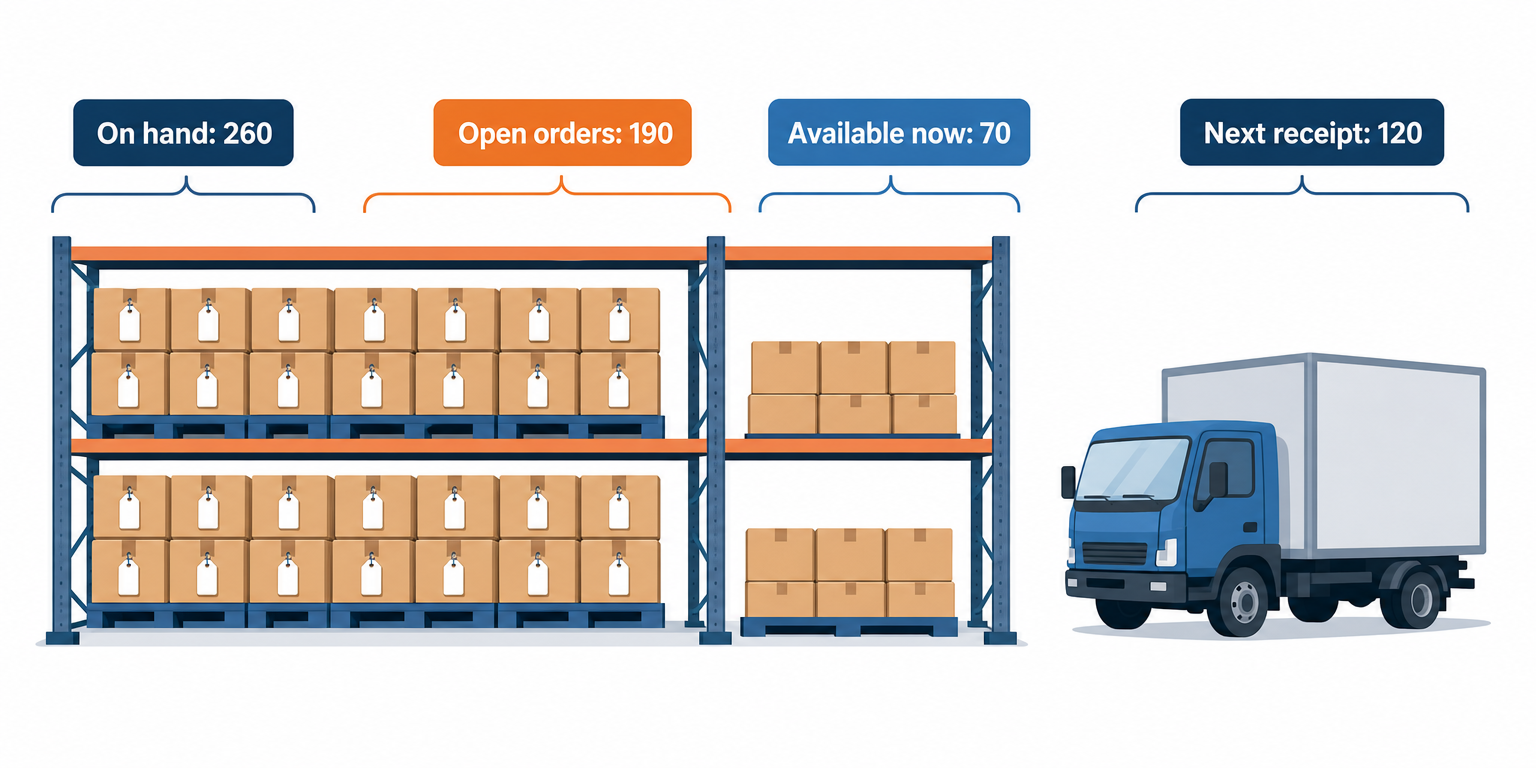
Business Central tracks that promised stock separately, as the quantity on open sales orders still to be shipped. Its Item Availability report starts from on hand, subtracts what orders need, and adds incoming supply (Microsoft Learn: Inventory KPIs). For a rep, split that into two figures:
- Available now: on hand minus what open sales orders still need. Take one item: On hand: 260. Open orders: 190. Available now: 70.
- Next receipt: the quantity and date of the next purchase order due in. Next receipt: 120, on November 16.
Keep them apart. Folding incoming stock into “available now” lets a rep sell units that are still on a truck.
The Rule: show reps what is free to sell, not what is on the shelf, and treat every stock figure in Salesforce as a reading, never a reservation.
A reading means two reps can both see 70 and both sell 70. Once the first order reaches Business Central, its quantity counts against what is available, and the second rep’s figure drops. So the flow stamps every figure with the time it was read, keeps it current in near real-time, and makes all three fields read-only.
Price Start Date, Not Sync Date
Prices usually change on the first of a month. That is where this stops being a sales question and becomes an accounting one. Business Central lets a price carry dates that define when it is valid, and it prices a sales order by the order’s date (Microsoft Learn: Record special sales prices and discounts). A Salesforce price book entry has no start date.
So a sync that copies whatever Business Central holds today gets the timing wrong. Say the list price for the shelving unit rises from $185 to $199 on December 1:
| Situation | What Salesforce should show | What happens to the deal |
|---|---|---|
| Quoted Monday, November 30 | $185 | November price, as quoted |
| Quoted Tuesday, December 1 | $199 | December price, matching the order |
| Flow down November 30 to December 2 | $199 on recovery | Deals created in the gap at $185 go to review |
The last row is the catch-up rule. When the flow comes back, it applies the new price first. Then it lists every opportunity created in the gap at the old price, so sales operations can review each one. It never reprices a deal silently. Which price wins on the eventual order is a separate decision, covered as pricing authority in our guide to turning won deals into ERP sales orders.
How Aonflow Publishes Product and Inventory Data to Salesforce
With the five decisions made, the build is configuration, not a development project. Each capability ties back to a decision above.
Aonflow lets teams:
- Publish the catalog from the item master with pre-built connectors for Business Central and Salesforce, so the two-catalog problem stops at the source.
- Use AI-assisted mapping for the five-row item-to-product table, which reduces integration time by more than half.
- Run the rules as one workflow: skip Sales Blocked items, retire the product and its prices together, and work out available now.
- Keep availability current with near real-time data sync, with the read time stamped beside every figure.
- Watch every run with dashboards, logs and alerts, so a stale figure becomes an alert before it becomes a promise.
- Recover breaking flows with self-healing, which shortens the outages the catch-up rule exists to repair.
Aonflow connects and orchestrates the systems you already run. Business Central still owns items, stock and prices, and Salesforce still owns the deal.
A Worked Example: 150 Shelving Units, 70 Available
Here is the Tuesday deal again, before the flow:
- Tuesday, November 10. The rep closes 150 units at $185, a $27,750 deal. Salesforce shows 260 from a nightly export, so she promises all 150 next week.
- Thursday, November 12. The order reaches Business Central. Open orders already need 190 of the 260, so the warehouse can ship 70.
- Friday, November 13. The customer hears that 80 units will follow the 120 due November 16.
With the flow, the rep sees three figures before she promises anything: 70 available now, 120 arriving November 16, and the time it was read. She offers 70 this week and 80 the week of November 16. The date holds, and nobody discounts anything.
One step that sells nothing: ask your warehouse lead which locations can actually ship to a customer, and count only those. A unit in a returns cage is on hand, and nobody should sell it.
Who Owns This When It Breaks
Who owns the flow? Sales operations owns what the Salesforce product fields show. The Business Central item master owner, often the purchasing or inventory lead, owns items, blocks and prices.
Who gets alerted when it fails? The flow owner, on the first failed run. The item master owner hears about any item that fails to publish.
Where do failed records wait for review? Items that fail to publish, such as an item with no unit price, wait on an exception list. The flow owner reviews it daily, and Aonflow’s logs and alerts show when a run fails.
Then wire these escalation triggers:
| Trigger | Who acts |
|---|---|
| An item fails to publish to Salesforce | Item master owner |
| An open opportunity carries a product that was just retired | Account owner, with sales operations |
| Availability hasn’t refreshed in two hours on a business day | Flow owner |
| A price change missed its start date | Sales operations, who reviews the deals created in the gap |
Security stays within the confirmed posture: data moves over HTTPS, HTTP access is available through read-only tokens, and role-based access control decides who can change the flow.
FAQ
Can a rep hold stock from Salesforce?
No. The figure is a reading. Stock is held once Business Central has the sales order, so if a deal needs stock held, get the order in.
Should customer-specific prices go to Salesforce too?
Usually not. Keep them in Business Central, which works out the best price on the order. Salesforce carries the list price reps start from.
Does building this need a developer?
No code is needed. You do need someone who knows how your items, blocks and price lists are set up.
Does this replace inventory management in Business Central?
No. Business Central keeps the stock and the item master. Salesforce shows a read-only view, so reps quote from it without changing it.
Conclusion
Product and inventory data in Salesforce comes down to five decisions: item master as the catalog, which items sell, retire, don’t delete, available, not on hand, and price start date, not sync date. Settle them before the first sync, decide who owns this when it breaks, and your rep’s Tuesday promise still holds on Friday.
Before you build anything, pull the 20 items your reps quote most and compare what Salesforce says with Business Central’s availability on the same morning.
Get Started with Aonflow iPaaS – Free Trial Available!
Build and deploy your integrations at zero cost. No credit card required!